Verify your identity
Send your NIC once so buyers can see you are a real person.
Verification is free and takes one go. It does not move your ads or change your price — it tells a cautious buyer that somebody real is behind the listing.
Sending your NIC
Step 1: Open User Verification from your profile menu. You need to be signed in, and you only ever do this once.
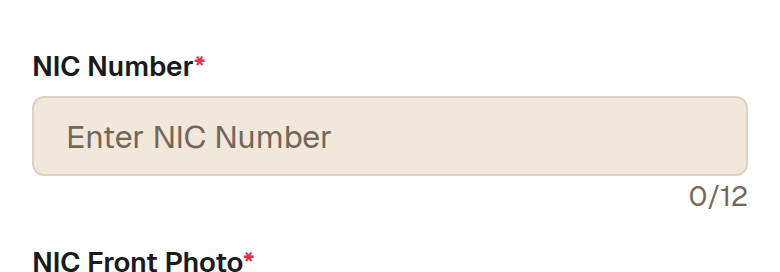
Step 2: Type your NIC number. The old ten-character format and the newer twelve-digit one are both fine — enter it exactly as it is printed, with no spaces.
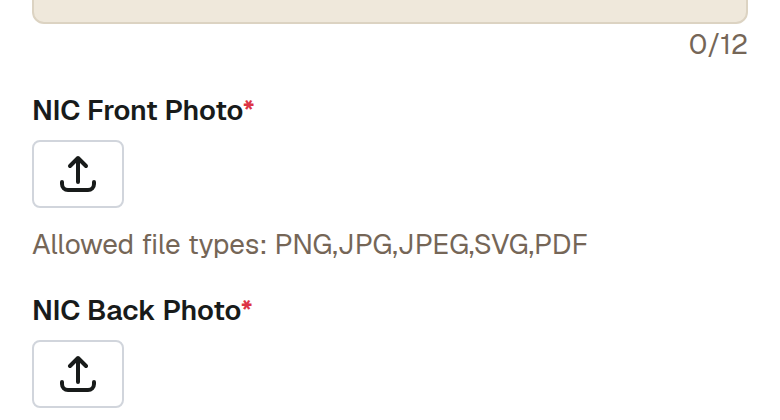
Step 3: Add a photo of the front of the NIC and a photo of the back. Lay the card flat in daylight, fill the frame, and check that the number and your name are readable before you upload. A photo or a PDF is fine — the accepted types are listed under each box.
Step 4: Press Verify. Your request goes to the team for checking — nothing is published, and your NIC number is never shown on your ads or to buyers.
Step 5: Once it is approved the verified mark appears against your name. Until then your ads work exactly as before.
What this cannot do
- Verification is checked by a person, so it is not instant. Post your ads in the meantime — they do not wait for it.
- It confirms who you are. It is not a check of the item you are selling, and it is not a guarantee to the buyer that a deal will go well.
- You submit once. If something needs changing after approval, contact the team rather than re-submitting.
Watch out for
- A photo taken at an angle, in shadow, or with a flash glare across the number is the usual reason a request comes back. Flat, daylight, whole card in frame.
- Do not send someone else's NIC, even a family member's. The name has to match the account.
- Do not put your NIC number in the ad description. It belongs on this form and nowhere else.